RushView APK Download For PC
letest version 2027 for PC
Learn how to use RushView on PC and Windows, check Android compatibility, emulator options and safe installation steps.
If you are searching for RushView for PC, Rush View for PC, RushView Windows, or RushView app for computer, this guide explains how the Android application can be used on a computer.
RushView is primarily listed as an Android application.
The commonly listed package is:
com.rush.rushenvi
The current commonly listed version is 3.0.1, with Android 7.0 or later commonly reported as the requirement.
An Android APK is not a Windows program.
So you cannot normally double-click a RushView APK and install it directly like an EXE file.
Current app-directory information establishes RushView as an Android application.
A native Windows version is not established by these listings.
This means you should be careful with websites offering a file called:
RushView.exe
Do not assume that an EXE file is an official PC release.
Check the source and developer information first.
If you want to use an Android application on a Windows computer, an Android-compatible environment can be used.
The basic process is:
- Install a trusted Android emulator.
- Open the emulator.
- Complete the Android setup.
- Download the compatible RushView APK.
- Import or open the APK inside the emulator.
- Install the application.
- Open RushView.
- Use your mouse and keyboard to navigate.
The exact steps depend on the emulator you use.
You may see searches such as:
Rush View APK for PC
or:
RushView APK download for Windows
Remember that an APK is still an Android package.
Windows cannot normally install APK files directly.
You need an Android-compatible environment if you want to run the Android version on a PC.
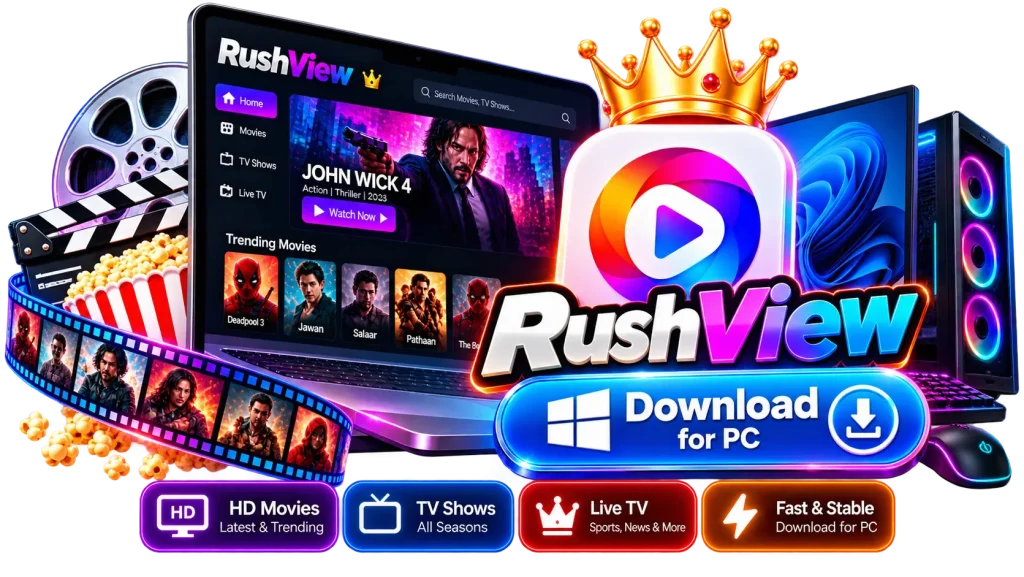
The requirements depend on the Android emulator.
As a general guide, having the following can help:
- Windows 10 or newer
- 4 GB or more RAM
- Several GB of free storage
- A modern processor
- Hardware virtualization enabled when required
- Stable internet connection
A stronger PC usually provides a smoother Android-emulator experience.
Step 1: Install an Android Emulator
Download an Android emulator from its official website.
Avoid random websites offering modified emulator installers.
Step 2: Set Up Android
Open the emulator.
Follow the setup instructions.
Give the emulator a few minutes to complete its initial setup.
Step 3: Download RushViewAPK
Download a compatible RushView APK.
Check:
- Version
- Developer
- Package name
- Android requirement
- File source
The commonly listed package name is:
com.rush.rushenvi
Step 4: Install the APK
Open the downloaded APK using the emulator.
Most Android emulators allow you to drag an APK into the emulator window.
Follow the installation instructions.
Step 5: Open RushView
After installation, find RushView inside the emulator.
Click the app icon.
You can now test the Android version on your PC.
Windows 11 can run Android applications in certain environments, but support depends on the specific Windows setup and available Android app technology.
For the simplest approach, many users choose an Android emulator.
Always download the emulator from its official source.
The same process applies to a laptop.
You need:
- Windows laptop
- Android emulator
- RushView APK
- Enough RAM
- Enough storage
The performance will depend on your laptop hardware.
A Windows EXE cannot be used directly on macOS.
If you have a Mac and want to run the Android version, you need an Android-compatible solution that supports your macOS version.
The exact method depends on your Mac model and operating system.
RushViewAPK Does Not Install
Check the Android version inside the emulator.
Also check the APK architecture.
Some APK files may not work with every Android environment.
RushView Is Running Slowly
Close unnecessary applications.
Give the emulator enough RAM.
Enable hardware virtualization if your emulator recommends it.
Also make sure your computer has enough free storage.
RushView Keeps Crashing
Try restarting the emulator.
Clear the app cache.
Install a compatible version.
Avoid modified APK files.
APK File Is Not Opening
Make sure the Android emulator is installed.
Then drag the APK into the emulator or use its APK installation option.
Internet Is Not Working
Check your PC internet connection.
Then restart the emulator.
You can also test another website inside the emulator.
The biggest risk is often not the Android app itself but downloading an unknown file from an untrusted website.
Avoid files such as:
RushViewPremium PC.exe
RushViewMod Windows.exe
RushViewCracked PC.exe
unless you can independently verify the source.
For the Android version, check the APK before installing it.